AstroWatch can remind you of the sky's important moments through the standard Windows notifications — on the morning of the day they happen, even when the app is closed. They are free in every edition, on Windows 10 and Windows 11.
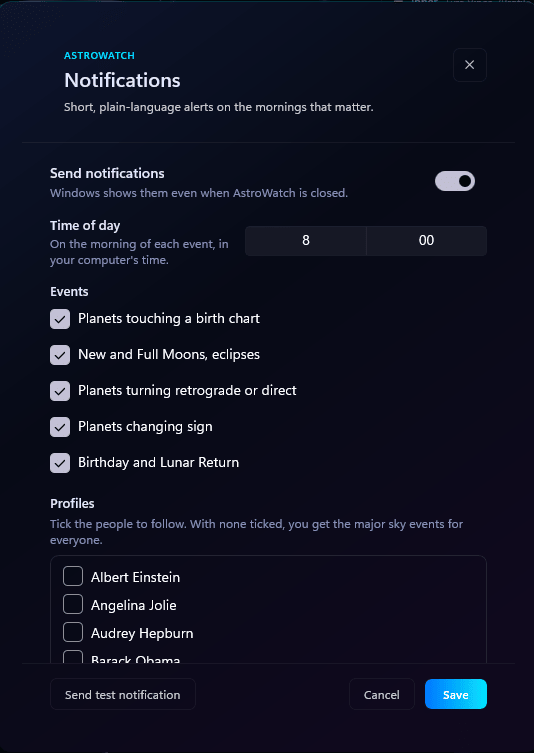
Settings → Notifications.
Setting up
Open Settings → Notifications:
Send notifications
The main switch. It's on by default.
Time of day
When the reminder arrives on the morning of each event, in your computer's time (08:00 by default).
Events
Tick the kinds of events you want (all are on at first):
- Planets touching a birth chart — exact transits to a followed profile.
- New and Full Moons, eclipses
- Planets turning retrograde or direct
- Planets changing sign — never the Moon, which changes sign every two or three days.
- Birthday and Lunar Return
Profiles
Tick the people to follow — yourself, family, clients. Several at once is fine. With none ticked, you get the major sky events for everyone.
Save
The schedule is renewed at once. Send test notification shows a sample (the Moon of the day) so you can check that Windows lets AstroWatch notify you.
What you receive
Each notification has a plain-language title and sentence, plus one short technical line — the planets and the aspect, and whose chart it is (for example ♃ △ ☉ · Sara).
- For followed profiles: the exact transits to each birth chart (the slow planets always; of the Sun, Mercury, Venus and Mars only the strongest one of the day), New and Full Moons and eclipses in their houses, the birthday and the monthly Lunar Return — plus the sky's stations and sign changes, sent once for everyone.
- With no profile ticked: stations, sign changes, New and Full Moons and eclipses.
At most four notifications arrive on one day, the strongest first. Click one and AstroWatch opens the Forecast screen on that moment, for that profile.

A notification on the Windows desktop.
Good to know
- AstroWatch schedules the next 14 days of notifications each time it runs (and every few hours while it's open). If you don't open it for more than two weeks, the reminders stop until you do.
- The texts follow the interface language; changing the language rewrites the schedule.
- Times follow your computer's clock and time zone.
What's next
Notifications and forecasts speak your language. To change it, see Interface Language →